7 Best Album Cover Makers for Spotify: 3000×3000 Art With No Stray Text
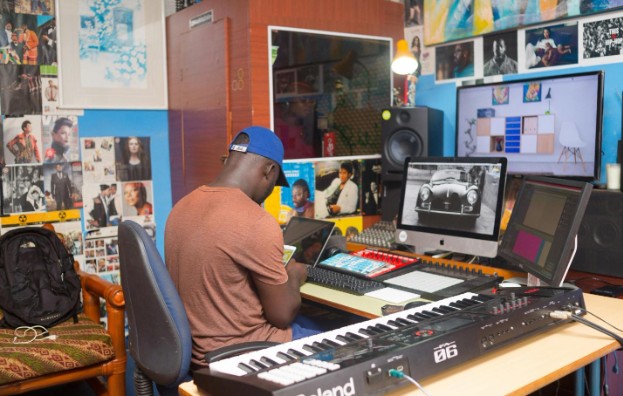
The single is mastered, the pre-save link is out and the review copies have gone to the press. Then, four days before release day, the distributor bounces the artwork. The reason is small: a label logo in one corner, or a line of text on the sleeve that does not match the release metadata. Now the release date is at risk over a square image.
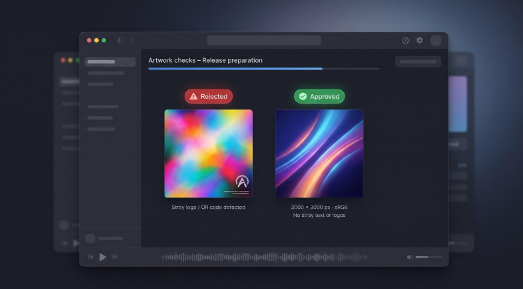
It happens to independent artists every week, and it rarely comes down to taste. Spotify wants a square cover in sRGB colour, between 640 and 10,000 pixels on each side, and distributors reject covers that carry web addresses, social handles, logos or text that does not match the title and artist name. For readers who follow new releases closely, the cover is the first thing they see in a playlist or a review. It has to look right at thumbnail size and pass the checks on the first upload.
The seven tools below all export a clean 3,000 × 3,000-pixel file. Some give you full control of the type, and some leave text out entirely, so you choose where the risk sits.
How We Chose
We compared each tool on six criteria, using only published specs and distributor rules, listed here from most to least important.
- Release-readiness: Exports a true 3,000 × 3,000-pixel square in sRGB with no hidden watermark.
- Text and layout control: Lets you swap fonts, delete logos, and keep metadata aligned.
- Originality and useful AI: Adds styles or prompts that prevent template fatigue.
- Ease of use: Works fast, even on mobile when you’re backstage.
- Commercial rights and watermark policy: Grants clear permission to sell, stream, and print.
- Brand consistency tools: Helps you keep covers in the same visual family across multiple singles.
This rubric screens out purely cosmetic apps and highlights tools that are Spotify ready on the first upload.
Comparison at a Glance
Scan the grid to flag non-starters, then jump to the full write-up for the tool that fits your workflow.
| Rank | Tool | Best for | 3,000-px export | AI tools | Text control | Mobile app | Key limitation |
| 1 | Neural Frames | Text-free, commercial-use covers | ✅ (3000×3000 PNG) | ✅ (36 styles) | No text added by design | Web | Titles must be added in another editor |
| 2 | Canva | Best all-round album-cover editor | ✅ | ✅ | Full manual fonts & layers | iOS / Android | Must delete template filler text |
| 3 | Adobe Express | Best for Adobe-based workflows | ✅ | ✅ | Adobe Fonts + layers | iOS / Android | Wider suite can feel complex |
| 4 | Kittl | Best for statement typography | ✅* | ❌ | Advanced warped type | Web | Starter tier maxes at 800 px* |
| 5 | Fotor | Best for fast AI-and-template edits | ✅ | ✅ | Basic title layers | iOS / Android | Watermark on free HD exports |
| 6 | Picsart | Best for mobile cover creation | ✅ | ✅ | Stickers & fonts | iOS / Android | Ad-heavy, crowded UI |
| 7 | VistaCreate | Best for a consistent singles campaign | ✅ | ✅ | Brand-kit templates | iOS / Android | Resize and brand tools in Pro |
- High-resolution export requires a paid Kittl plan; the free tier is capped below Spotify’s safe zone.
The Seven Best Album Cover Makers for Spotify
1. Neural Frames: Best for Text-Free Covers You Can Use Commercially
Neural Frames is best known for turning a track into audio-reactive music videos, but its AI Album Cover Generator does one narrow job that matters on release week. You type a short prompt that describes the sound or mood of the record, pick one of 36 musical styles, from metal and rock to hip-hop, and the tool returns a square 3,000 × 3,000-pixel PNG.
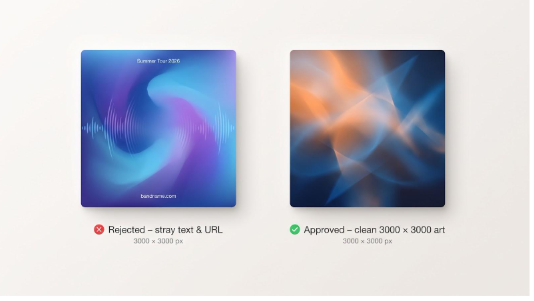
Text-free art removes the most common reason for a rejection.
The important detail is what it leaves out. The generator adds no text, fonts or titles to the image. That can look like a missing feature, but it is the reason the tool suits distributor checks: there is no stray logo, no web address and no half-spelled title for a reviewer to flag. If the release needs the artist name on the front, you add it yourself in an editor where you control every letter, so the text matches the metadata exactly.
Rights are the other reason it ranks first here. The tool page states that the covers can be used for streaming releases, physical records, merchandise and promotion, commercially and without attribution. For an independent artist pressing a small vinyl run or printing shirts for a launch show, that removes one question before it starts. To check the styles and the output before you commit to an idea, you can see how it works on the generator page.
The wider Neural Frames platform can then turn the same track into an audio-reactive music video. It does not make music, and it is a video platform first, so treat the cover generator as a fast source of clean art rather than a full layout suite.
Limitations: the generator does not add titles, layouts or typography, so a text-led cover still needs a second editor such as Canva or Kittl.
2. Canva: Best All-Round Album-Cover Editor
Canva bundles album art, lyric-video frames, and tour-poster layouts in one workspace.
Open a blank file, set the canvas to 3,000 × 3,000 px, and you’re already inside Spotify’s safe zone. Canva’s Help Center confirms it supports square designs up to 5,000 × 5,000 px, so resolution won’t cap your release.
Pick a template or drop in a tour photo; every layer is draggable and text stays fully editable, letting you match fonts to your metadata instead of wrestling canned copy. Built-in AI tools—image generation, background removal, palette shifts—speed up tweaks without locking you into prompt-only design. The iOS and Android apps mirror the web interface, so you can fix contrast on the subway and export the final PNG before rehearsal.
Watch-outs: Dummy template text can sneak into exports if you miss a box, and shortcut features like Brand Kit and Magic Resize sit behind the Pro plan. For artists juggling cover art, social assets, and tight timelines, Canva’s breadth outweighs those trade-offs.
3. Adobe Express: Best for Adobe-Based Workflows
If you already live in Photoshop, Illustrator, or Premiere, Adobe Express keeps everything in the same Creative Cloud lane without slowing release day.
Open a blank 3,000 × 3,000-px canvas or an album-cover template, then pull in brand colors, Adobe Fonts, or stock images from your shared assets. Firefly image generation sits one click away, so you can spin up abstract backdrops without leaving the page. Every layer stays editable, which makes matching title text to distributor metadata painless.
Need consistency across a rollout? Save the file as a brand template, then swap imagery for each single while the logo, advisory badge, and palette stay locked. The mobile app mirrors desktop tools, letting you adjust contrast in the merch line and export a high-resolution RGB PNG before doors open.
Heads-up: Express offers deep options—blend modes, motion graphics—that can overwhelm first-timers, and removing Adobe’s watermark or unlocking premium fonts requires a paid plan. For artists already tied to Creative Cloud, though, Express keeps the visual workflow in one place.
4. Kittl: Best for Statement Typography
Need lettering that feels ripped from a vintage metal poster? Kittl specializes in big, sculpted type.
Open a music-focused template or a blank 3,000-px square, then dive into a font library packed with retro, gothic, and hand-drawn cuts. Each glyph can bend, warp, or extrude with a simple drag, so you can arc titles around a vinyl circle or stack them like a hardcore flyer without opening Illustrator. Textures and color-grade presets sit one click away, adding metallic foil, distressed ink, or neon glow in seconds.
Know the limits: The free Starter tier tops out at 800 px and doesn’t grant commercial rights, so you’ll need a paid plan for true Spotify-safe exports and merch permission. Plan for that upgrade before perfecting every curve.
Kittl lacks an image generator, but it pairs well with a text-free cover from Neural Frames or your own tour photos. Drop the art in the background, layer the warped title on top, export a high-resolution PNG, and you have a cover bold enough to stand out, yet compliant enough to glide through distributor checks.
5. Fotor: Best for Fast AI-and-Template Edits
Fotor’s edge is speed. Open the editor, prompt its built-in AI with “noir saxophone silhouette under a streetlight,” and seconds later you’re arranging the result on a 3,000-px square canvas.
If the AI nails the vibe, add the title, drop in a parental-advisory badge, and export. If it misses, dip into Fotor’s hundreds of genre-neutral templates and rebuild without starting from scratch. The blend of generation and manual tweaks keeps the workflow quick without trapping you in endless prompting.
Key export steps are front and center: choose PNG for clarity, lock dimensions to 3,000 × 3,000, and tick sRGB. Free exports carry a small watermark, and the AI-credit pool drains fast when you chase perfection. Upgrading removes both hurdles and unlocks batch processing, helpful when you’re scheduling several remixes.
The editor runs on web, iOS, and Android, so a hotel-Wi-Fi tweak is no big deal. You’ll trade away deep font libraries and brand kits, but for artists who value “done” over “infinite options,” Fotor gets a compliant cover out the door in minutes.
6. Picsart: Best for Mobile Cover Creation
In the van between venues, Picsart turns your phone into a full-featured editor.
Open a blank square, set the canvas to 3,000 × 3,000 px, and you’re working at the same resolution a desktop app offers. The AI Image tool can whip up vaporwave skylines or glitchy portraits, and every layer—stickers, fonts, and filters—stays editable, so you can delete anything that crowds the frame or clashes with metadata.
Mobility is the hook. The iOS and Android apps mirror the web interface, right down to blend modes and masking. Need to bump contrast, swap colors, or add a parental-advisory badge? Two taps, export, upload, and you’re done.
Trade-offs: The interface is busy, with ads and upsell prompts nudging you toward Pro or Ultra plans, and some premium fonts and effects hide behind those tiers. Still, the free toolkit meets Spotify’s specs, and upgrading unlocks high-speed batch exports when tour schedules get hectic.
If your artwork often happens in cramped green rooms or backstage couches, Picsart lets you finish the job without sacrificing professional-grade output.
7. VistaCreate: Best for a Consistent Singles Campaign
VistaCreate suits artists who want every release to feel like the next chapter of the same story.
Start with a brand kit: drop in your logo, pick core colors, lock a headline font, and those assets surface automatically in every new design. Set the canvas to 3,000 × 3,000 px, choose an album template, and build your first cover. For the next single, swap the background art, change the title, and tap Magic Resize to push out matching Instagram, YouTube, and banner versions in one sweep.
Paywall note: Magic Resize and most advanced brand features live in the Pro plan (about US$10 per month). If you’re rolling out five singles over six months, the hours saved can outweigh the fee. Exported PNGs keep your custom dimensions, stay in RGB, and reach distributors without color shifts or cropping surprises.
VistaCreate also offers an AI-art tool and a stock library, but its real advantage is disciplined consistency. Use it as the hub that keeps your visual identity tight while other apps handle generation or heavy photo edits.
Buying Advice and a Release Pre-Flight Check
Choose an editor based on your biggest risk:
- Hidden text rejections – pick a text-free generator such as Neural Frames.
- Exact typography – Canva or Adobe Express let you match song titles precisely; just delete every placeholder box.
- Statement lettering – Kittl’s warp tools justify the upgrade fee if your brand revolves around custom type.
Whichever path you take, run every cover through this five-step checklist before you upload:
- Export a fresh 3,000 × 3,000 px PNG or JPG. Never upscale a smaller file.
- Verify the file’s sRGB color profile and keep dimensions below Spotify’s 10,000-px cap (Spotify Support).
- Remove any URLs, QR codes, logos, or stray text that doesn’t match your metadata.
- Test at thumbnail size. The art should still read instantly, the way the striking album art on Beyoncé’s Cowboy Carter does in a crowded playlist.
- Archive the master, then send the file to your distributor. Playlist covers use a different workflow.
Follow these steps and you’ll replace last-minute panic with an on-time, rejection-free release.
Frequently Asked Questions
What Size Should Spotify Album Art Be?
Spotify accepts a square image from 640 × 640 px up to 10,000 × 10,000 px. Work at 3,000 × 3,000 px in sRGB, so you can crop, compress, and satisfy every major distributor without upscaling a smaller file.
Can an Artist Upload Album Artwork Directly to Spotify?
Commercial releases travel through your label or distributor; Spotify’s in-app tool only edits playlist covers. To correct release art, send a new file through your distributor’s metadata pipeline.
Is AI-Generated Cover Art Legal to Use?
Commercial use depends on the tool’s licence, and AI output alone rarely qualifies for U.S. copyright. You need permission for any source imagery and meaningful human editing to claim authorship. Keep drafts as proof, and consult a lawyer for specific cases. This content is information, not legal advice.

RenownedForSound.com’s Editor and Founder
Interviewing and reviewing the best in new music and globally recognized artists is his passion.
Over the years he has been lucky enough to review hundreds of music releases and concerts and interview artists ranging from top selling superstars like 27-time Grammy Award winner Alison Krauss, Boyz II Men, Roxette, Cyndi Lauper, Lisa Loeb, Tori Amos and iconic, late Eagles front man/songwriter, Glenn Frey through to more recent successes including Newton Faulkner, Janelle Monae and Caro Emerald.
Brendon manages and coordinates the amazing team of writers on RenownedForSound.com who are based in the UK.